
Virtual Systems | Veeam Platinum VCSP
Estimated read: 6 minutes
Why backup hardening matters now
Ransomware has changed the math on data protection. When an attack hits, your backups are the last line of defense; if they are compromised, recovery options shrink fast. According to Veeam’s Ransomware Trends Report, 93 percent of cyberattacks targeted backup repositories. Attackers go after backups specifically because a clean recovery point is the one thing that lets you avoid paying a ransom.
The challenge for most IT teams is not knowing that backups should be hardened; it is knowing whether they actually are, and being able to prove it. That is exactly the gap Veeam’s Security & Compliance Analyzer is built to close.
What the Security & Compliance Analyzer is
The Security & Compliance Analyzer is a tool built directly into the Veeam Backup & Replication console. It checks your backup server configuration against Veeam’s security best practices for both the underlying operating system (Windows Server and Linux) and the Veeam product itself. Those best practices are based on recognized industry standards combined with field-proven Veeam guidance, and they expand over time as new Veeam versions ship.
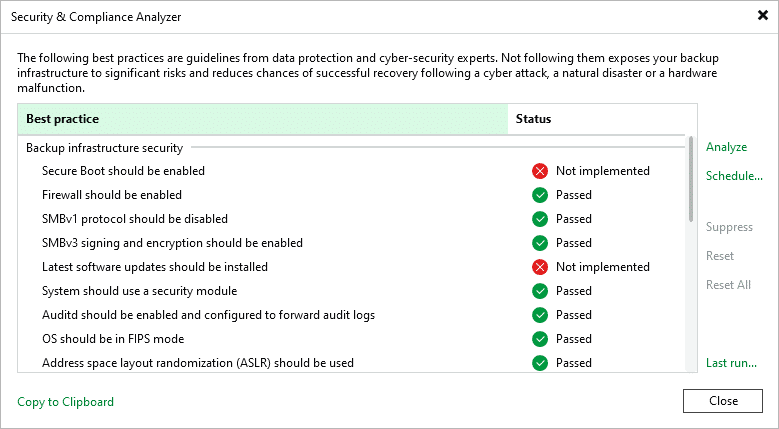
When the analyzer runs, it evaluates more than 30 parameters covering things like remote access, outdated protocols, firewall posture, multi-factor authentication, immutability, and notifications. The output is a clear, per-server report showing what passed and what still needs attention, which doubles as documentation you can hand to an auditor or to leadership.
The two categories it checks
- Backup Infrastructure Security. These checks look at the Windows operating system and services hosting your Veeam Backup & Replication server. Examples include whether Remote Desktop Services (TermService), the Remote Registry service, and Windows Remote Management (WinRM) are disabled, whether the Windows firewall is enabled for all network profiles, and whether deprecated versions of SSL and TLS are turned off.
- Product Configuration. These checks look at settings you control directly inside the Veeam console. Examples include whether multi-factor authentication is enabled, whether configuration backup encryption is configured, where the configuration backup is stored, and whether immutable or offline (air-gapped) backups are in use.
A useful mental model: the first category hardens the box Veeam runs on; the second hardens Veeam itself.
Technical walkthrough: running a scan
Note on versions: Full functionality lives in the Veeam Backup & Replication desktop console. In the new Web UI (available starting with v13), you can view scan results but cannot run or remediate from there.
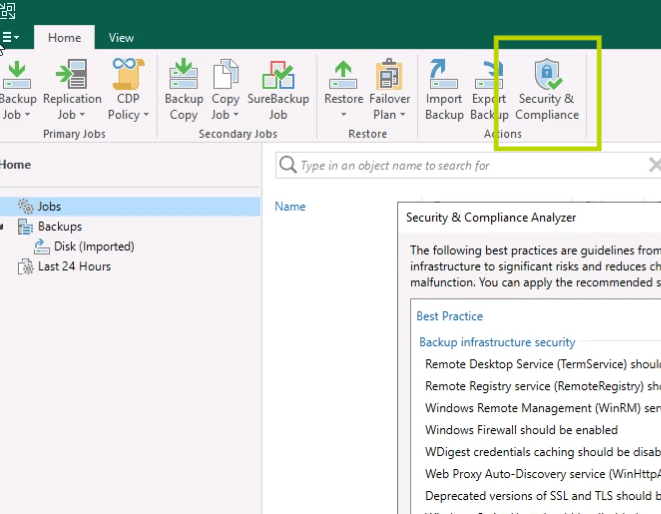
- Open the analyzer. In the Veeam Backup & Replication console, go to the Home tab and click Security & Compliance on the ribbon. The Security & Compliance Analyzer window opens and the scan starts automatically.
- Let the scan complete. The analyzer works through every parameter and assigns each one a status. No input is needed while it runs.
- Review the results by category. Results are grouped under Backup Infrastructure Security and Product Configuration so you can see operating system hardening and Veeam product hardening separately.
- View the last scan or the log if needed. Click Last run to see prior results. For deeper detail, the log file is stored by default at C:\ProgramData\Veeam\Backup\Job.BestPracticesAnalyzer.log.
How to interpret the results
Every parameter returns one of a small set of statuses. Knowing what each one means is the difference between a report you can act on and a wall of red:
| Status | What it means and what to do |
|---|---|
| Passed | The setting matches Veeam’s recommended configuration. No action needed. |
| Not implemented | The setting does not match the recommendation. Either remediate it or suppress it if it does not apply to your environment. |
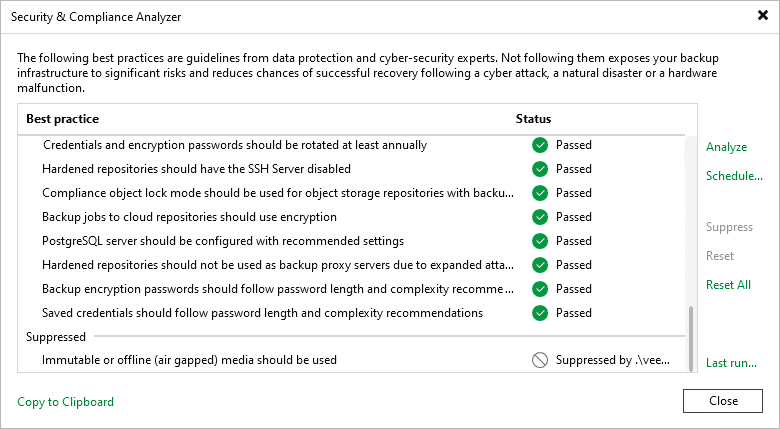
| Suppressed | You have intentionally excluded this parameter from the checklist. It will not affect your overall result until you reset it. |
| Unable to detect | The analyzer could not determine the state, often because an expected registry key does not exist. The deprecated SSL/TLS check is a common example; it only reports Passed or Not implemented when specific registry keys are present. |
| Not checked | The parameter has not yet been evaluated, typically before a scan has run or right after a reset. |
Reading the report in context. A Not implemented status is not automatically a failure you must fix. It is a prompt to make a decision. Some recommendations, such as disabling Remote Desktop Services, are appropriate for most environments because the Veeam console can be installed on any Windows machine and used to manage the deployment remotely, so direct RDP to the backup server usually is not required. Others may not fit your operational reality, and that is what the suppress option is for.
Remediating findings
Option A: Manual remediation
For each Not implemented item, apply the recommended setting, then click Analyze to rescan and confirm the status flips to Passed. A disciplined approach when changing multiple settings: take a snapshot, apply one change, restart if needed, then verify the server and jobs still function before moving to the next item. A few specifics worth flagging:
- MFA: before enabling multi-factor authentication, you typically need to remove the built-in Administrators group from the Veeam users, add the local administrator, then add the specific user you want MFA enabled for and complete the activation.
- Deprecated SSL/TLS: this one almost always has to be handled manually through specific registry keys; the automation script does not set it.
- Firewall: the analyzer expects the Windows firewall to be enabled for all network profiles (Domain, Private, and Public), not just one.
Option B: Automated remediation via script
Veeam publishes a PowerShell script (KB4525) that automates most of the hardening recommendations. It connects to the local Veeam Backup & Replication instance, triggers a fresh analyzer session, reports the current state, and lets you apply either selected or all recommended settings.
Important cautions before you run it:
- Run it in an elevated PowerShell console on the backup server, using a local administrator account. Recent script versions require PowerShell 7 (invoked with pwsh).
- The script has no undo. Any change you want to reverse must be reverted manually.
- It will not touch parameters you have marked as Suppressed, so suppress anything you do not want changed before running the apply option.
- By default it can disable services such as Remote Desktop and WinRM. Disabling WinRM can interfere with external management of the server, so confirm those changes fit your operations first.
Suppressing parameters that do not apply
If a recommendation genuinely does not fit your environment, select the parameter and click Suppress. Suppressed items move to their own section and stop affecting your result. To bring one back, select it and click Reset; it returns to the checklist with a Not checked status, ready to be evaluated on the next scan.
Scheduling and fleet-wide reporting
The analyzer does not have to be a one-time, manual exercise. Click Schedule to run the check automatically on a recurring basis and have results delivered by email, with options to customize the subject and notification type. This turns hardening into an ongoing control rather than a project you do once and forget.
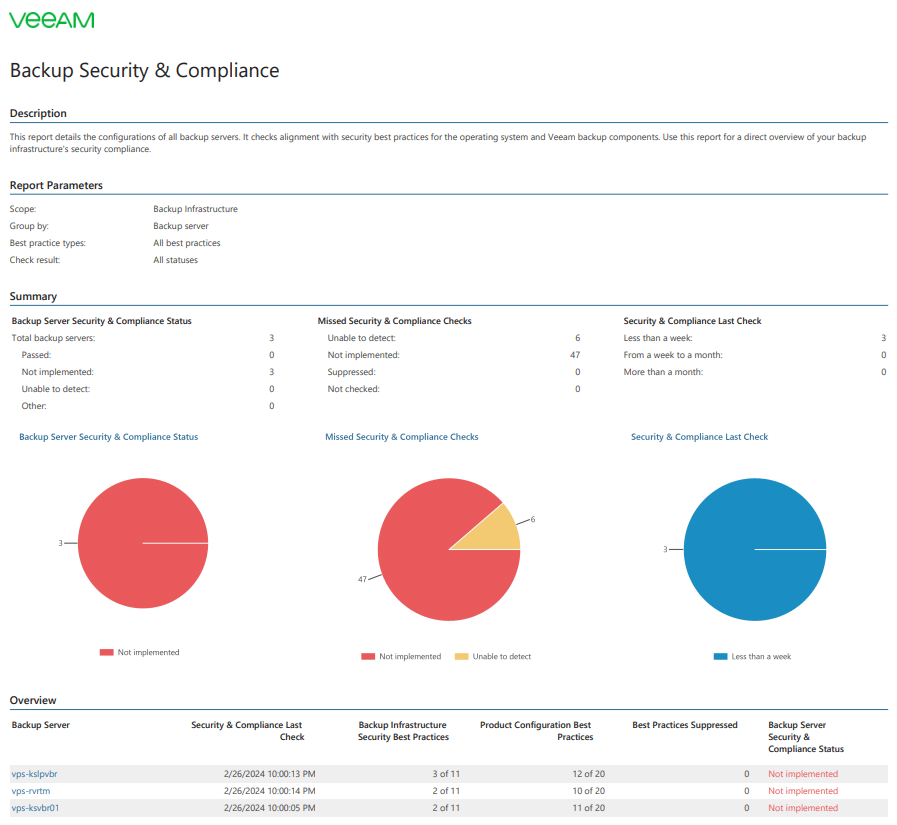
For organizations running multiple backup servers, Veeam ONE aggregates everything in one place through the Backup Security & Compliance report. It summarizes the compliance status across all servers, shows which checks are missed versus passed versus suppressed, and indicates how recently each server was checked. Veeam ONE also provides alarms tied to each best practice per server, so stakeholders get real-time notification when something drifts out of compliance. That combination of scheduled scans, fleet reporting, and alarms is what lets you answer “are we doing everything we can to harden our backups” with documented evidence rather than a guess.
A practical starting checklist
If you are running the analyzer for the first time, this sequence keeps things controlled:
- Scan first: Run an initial scan and review the results by category.
- Suppress parameters: Disable and document any irrelevant checks.
- Snapshot server: Backup the server before making changes.
- Fix criticals: Remediate MFA, immutability, backup encryption, and firewalls first.
- Rescan & export: Verify the fixes and save the report.
- Automate checks: Schedule recurring scans with automatic email alerts
Want help hardening your Veeam environment?
Running the analyzer is straightforward. Interpreting every finding, deciding what to remediate versus suppress, safely applying changes without disrupting jobs, and standing up scheduled reporting across a fleet of backup servers is where a partner saves you time and risk.
Virtual Systems is a Veeam Platinum VCSP (Veeam Cloud & Service Provider). We help organizations harden their backup infrastructure against ransomware, implement immutability and air-gapped recovery, and build the documented, audit-ready compliance posture this tool is designed to produce. Whether you want a one-time hardening review or fully managed Backup-as-a-Service and Disaster-Recovery-as-a-Service, we can help.
Ready to make your backups resilient? Reach out to our team at to schedule a backup security review.
Virtual Systems | Grand Rapids, MI | Veeam Platinum VCSP
Share
Resources + Updates