

You can use a Grandfather-Father-Son (GFS) backup strategy to retain backups for archiving using minimal resources. A GFS strategy involves retaining backups from different periods:
- Weekly
- Monthly
- Yearly
Configuring a grandfather-father-son backup copy job
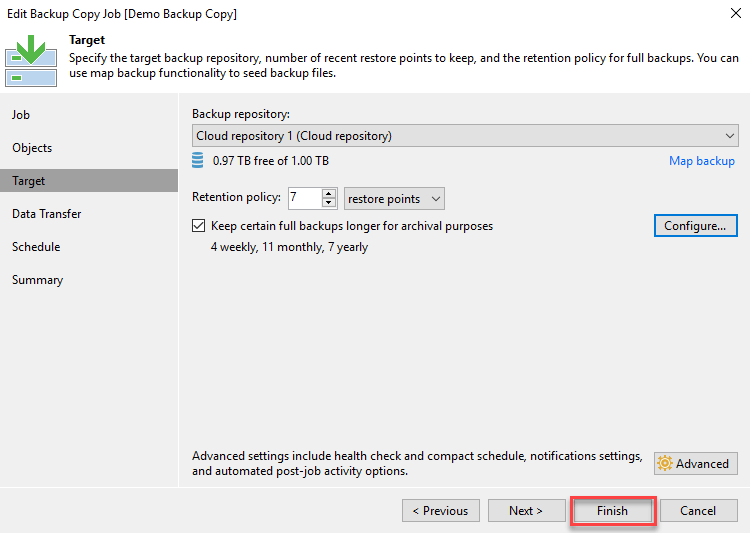
You can configure GFS policies on either a Veeam backup or Veeam backup copy job. For a Veeam backup job, ensure the job is configured to create full backups periodically. Refer to our knowledge base article Steps for Creating a Local Backup Job. To configure an existing Veeam backup copy job for GFS, follow these steps: 1. In the Veeam Backup and Replication (VBR) console, navigate to the backup copy job that you wish to configure the GFS policy on, right-click and select Edit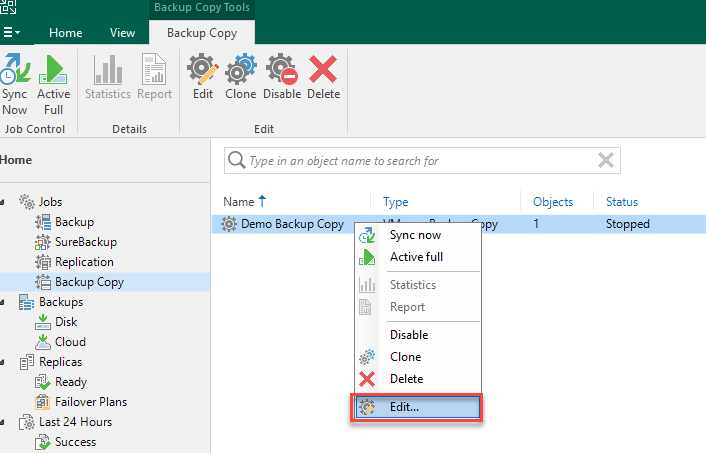 2. Select the Target tab on the Edit window.
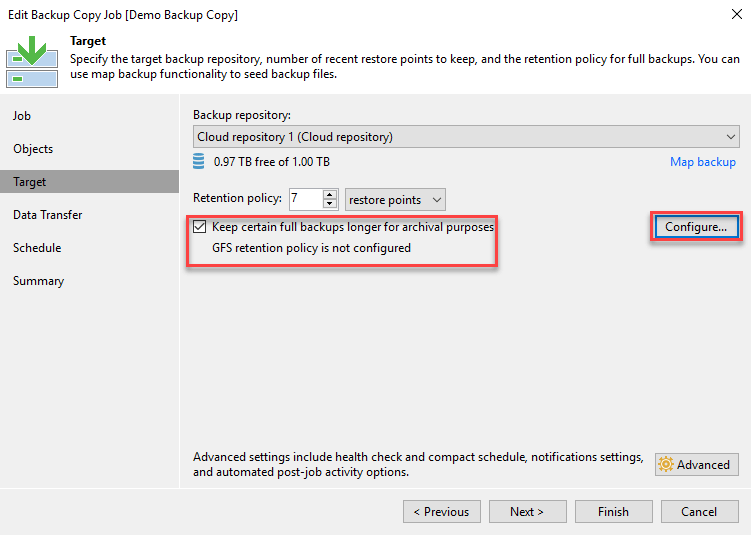
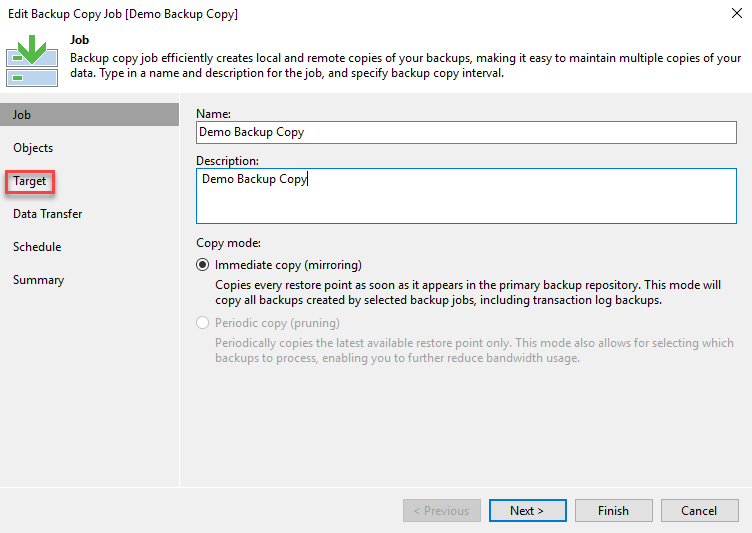 3. Check Keep the following full backups longer for archival purposes, then click Configure.
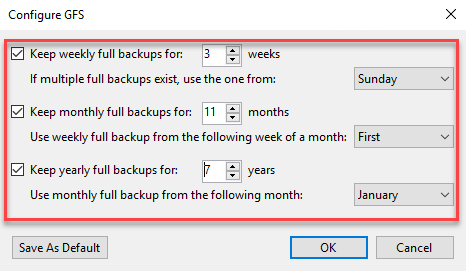
 4. Next, set the restore points you wish to keep as part of your GFS cycle.
In this example, you’d be keeping four weekly backups, eleven monthly backups, and seven yearly backups for archival purposes and keeping them outside of the daily backup chain. You can select the desired full backup you want to use for each restore point with the drop down menus. When you have the desired restore points, click OK.
4. Next, set the restore points you wish to keep as part of your GFS cycle.
In this example, you’d be keeping four weekly backups, eleven monthly backups, and seven yearly backups for archival purposes and keeping them outside of the daily backup chain. You can select the desired full backup you want to use for each restore point with the drop down menus. When you have the desired restore points, click OK.
 Remember: If monthly or yearly full backups are scheduled on the same day as the weekly full backup, Veeam Backup & Replication will create only one archive full backup based on the weekly backup. It will also be marked as the monthly or yearly GFS backup.
In this example, the restore points would be archived for:
Remember: If monthly or yearly full backups are scheduled on the same day as the weekly full backup, Veeam Backup & Replication will create only one archive full backup based on the weekly backup. It will also be marked as the monthly or yearly GFS backup.
In this example, the restore points would be archived for:
- 4 weekly full backups taken each Sunday.
- 11 monthly full backups taken from the first weekly full backup each month.
- 7 yearly full backups taken from the full monthly backup every January.
Share
Resources + Updates